Printing On Campus

Overview and Cost

Printers are available at the Vancouver House campus. Current students, staff, and faculty are able to print, scan, or photo copy documents using these machines. All individuals are responsible for following copyright restrictions when printing, scanning, or photocopying at UCW.

Newly enrolled students receive $5.00 of printing credit loaded automatically to their account at the start their program. To request additional credit for printing, contact the IT department via the Helpdesk in the IT Resources section of the myUCW Portal or via email at [email protected] 


Printing/Photocopying Costs:

  • $0.10 / side for black & white copies
  • $0.20 / side for colour copies
  • There is no cost to scan documents to PDF
How to Print

Log in to a Desktop Computer

To print, you must be logged into a desktop computer on campus. Laptops and phones are not supported.

Your login credentials for UCW desktop computers are your Microsoft 365 email address (@myucw.ca) and associated password.

After logging in, access the your document on the desktop computer using your preferred method (for example: via the MyUCW portal, Microsoft Office, email, Whatsapp, etc.).

Send the document to the printer. Once sent, you can log in to the printer to authorize release.

Log in to the Printer

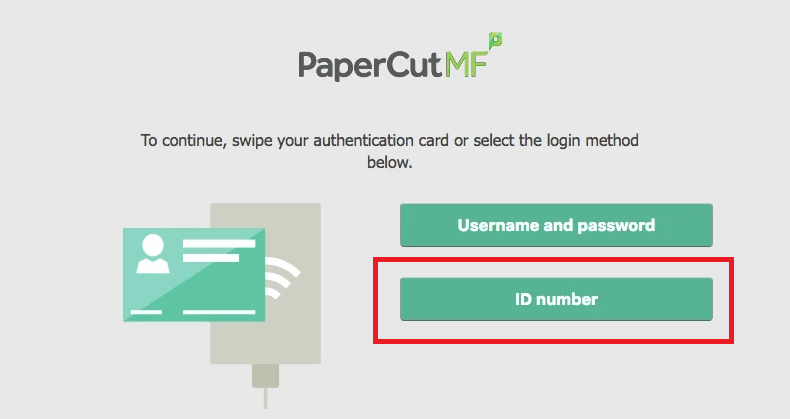
Once you've sent your document to the printer, log in to the printer with your UCW ID number to authorize release. No password is required.

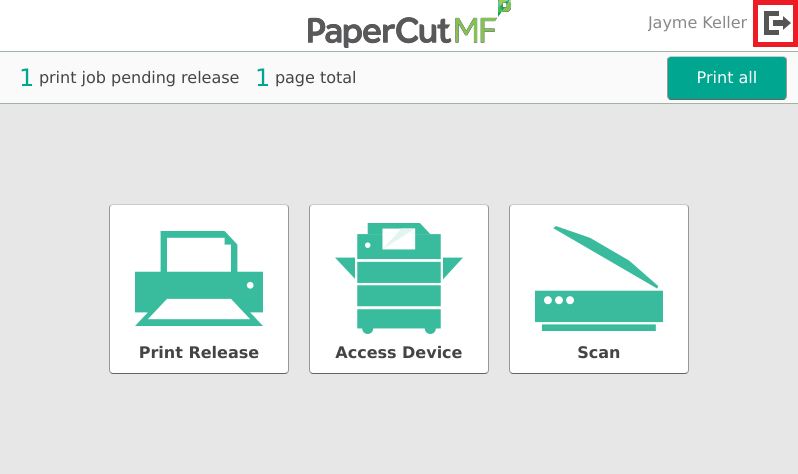
Press Print Release to select specific documents or select Print all on the main screen to complete printing.

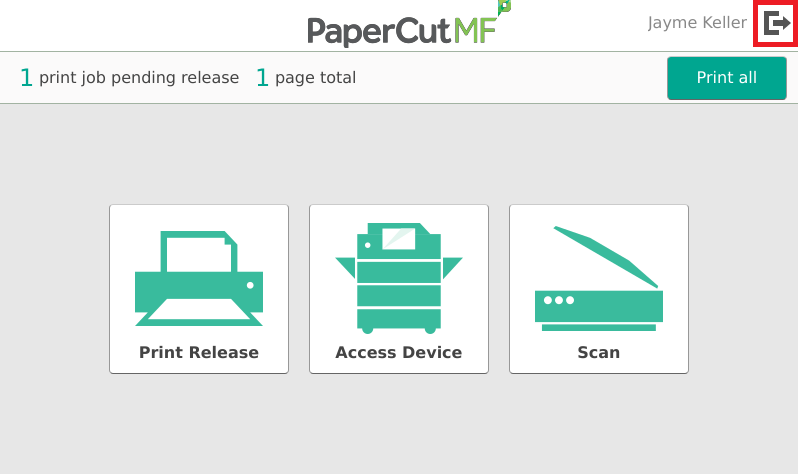
When you've finished printing, log out of printer by pressing the arrow icon in the top right corner.


To Scan Standard Letter Size Documents (8.5 x 11in)

Once logged into the printer with your UCW ID number, press Scan.

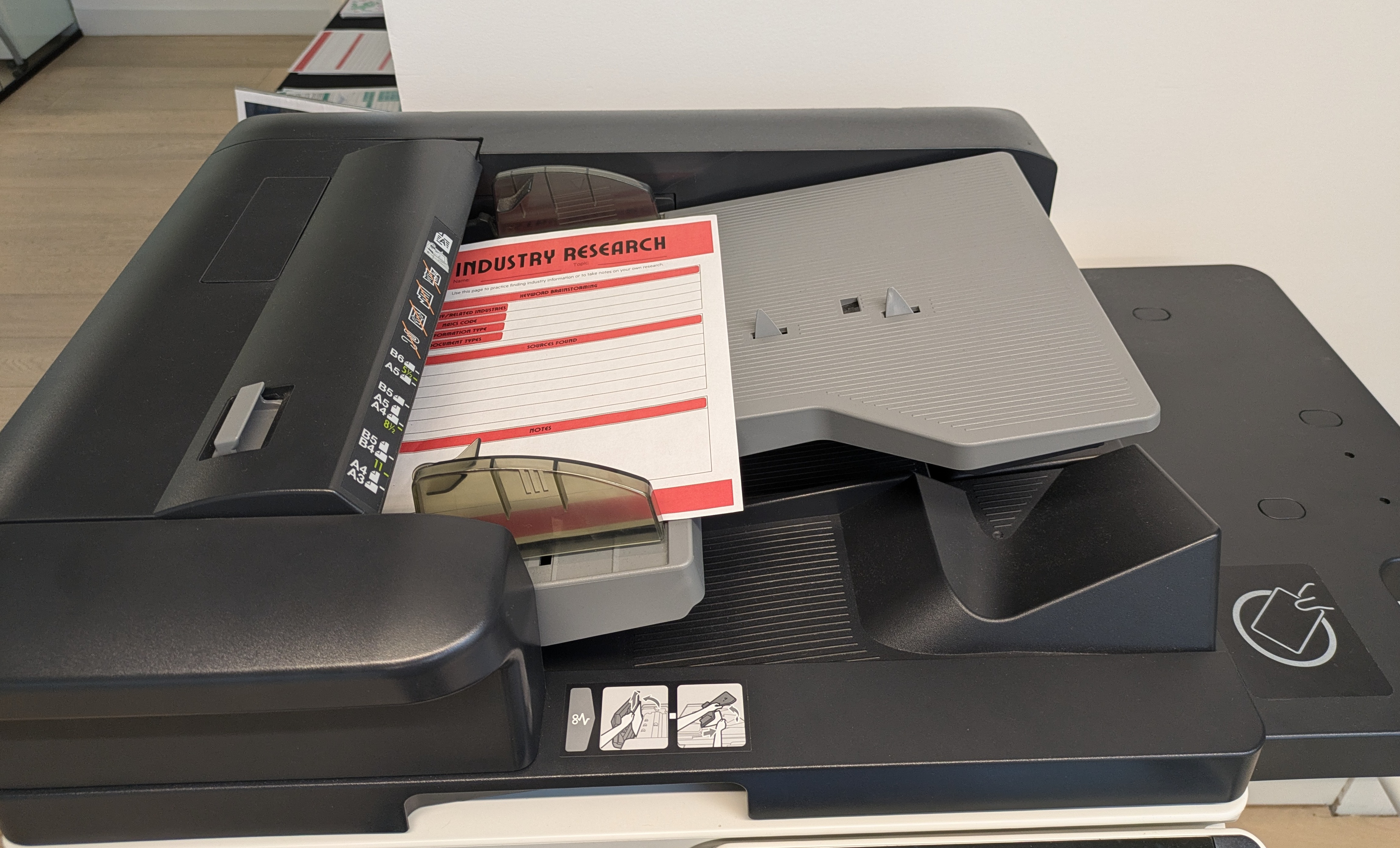
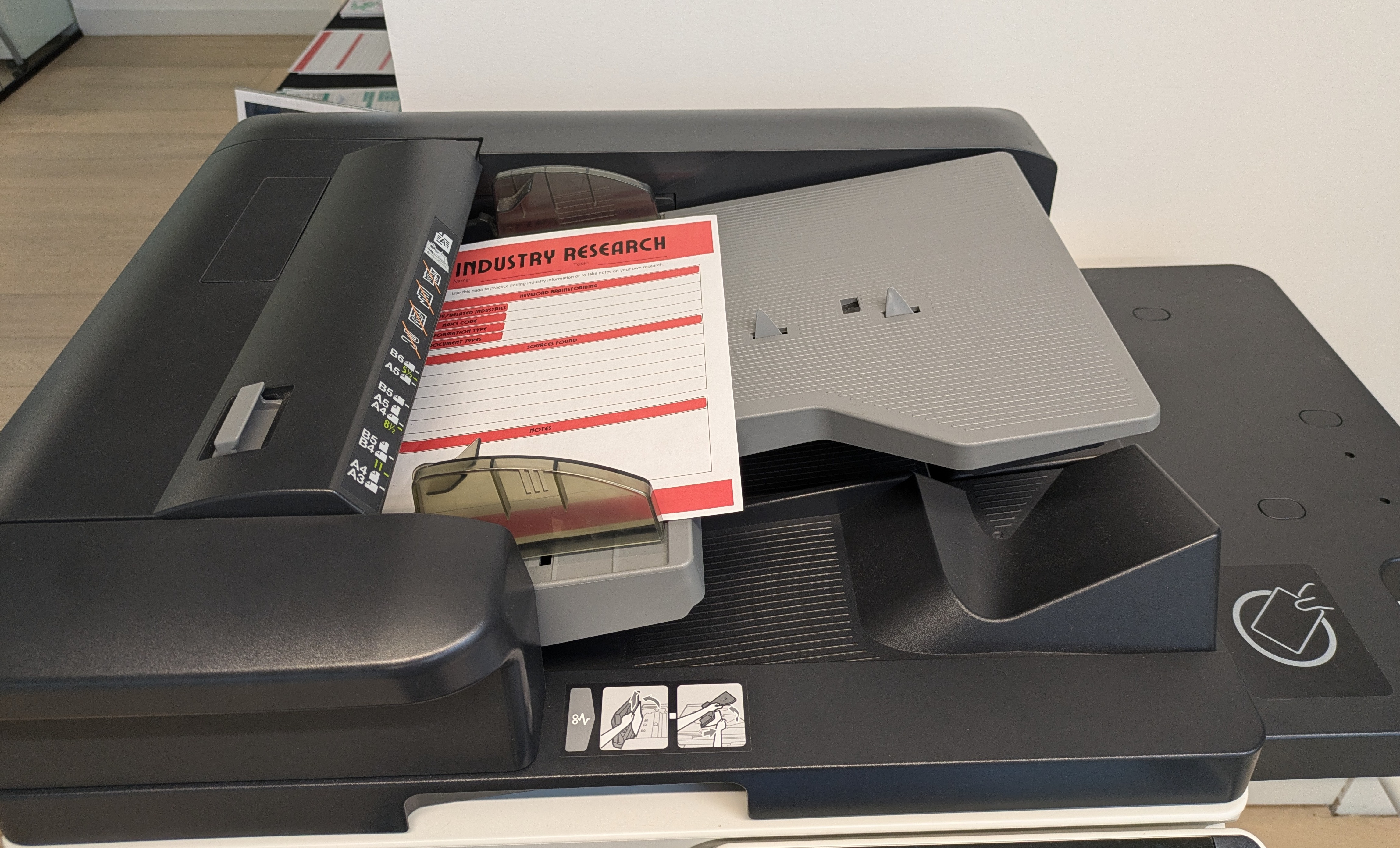
Place the document(s) in the loading tray at the top of the machine. Paper must be in portrait orientation in the loading tray.

Adjust settings as necessary to accommodate 2-sided documents, change output file type, etc., then press Start.

Note: Improperly loading the tray can result in damage to documents. Be cautious using this method for important documents.

To Scan Irregular Size Documents or IDs

Once logged into the printer with your UCW ID number, press Scan.

Adjust settings to accommodate additional pages, change output file type, etc., as necessary.

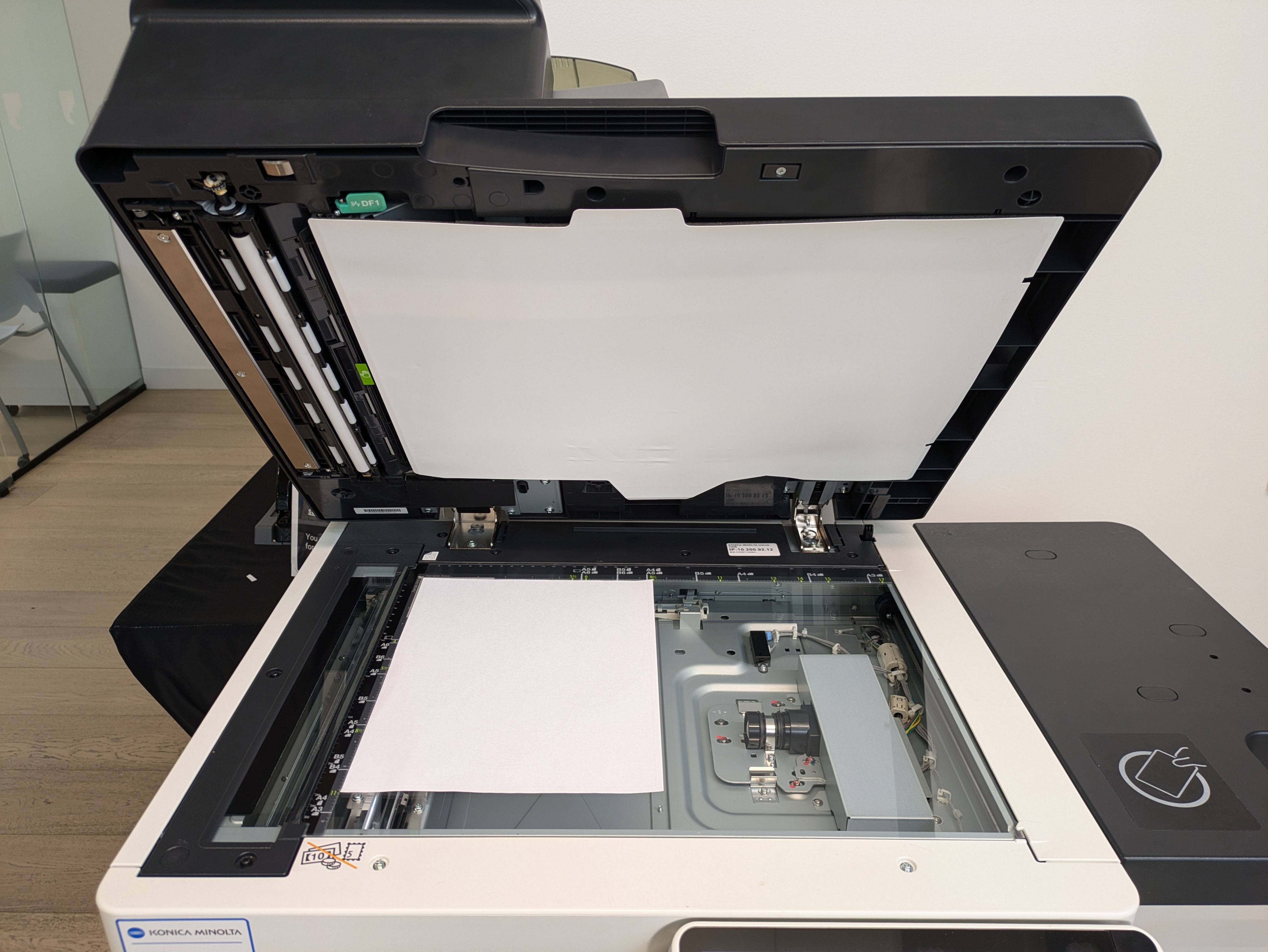
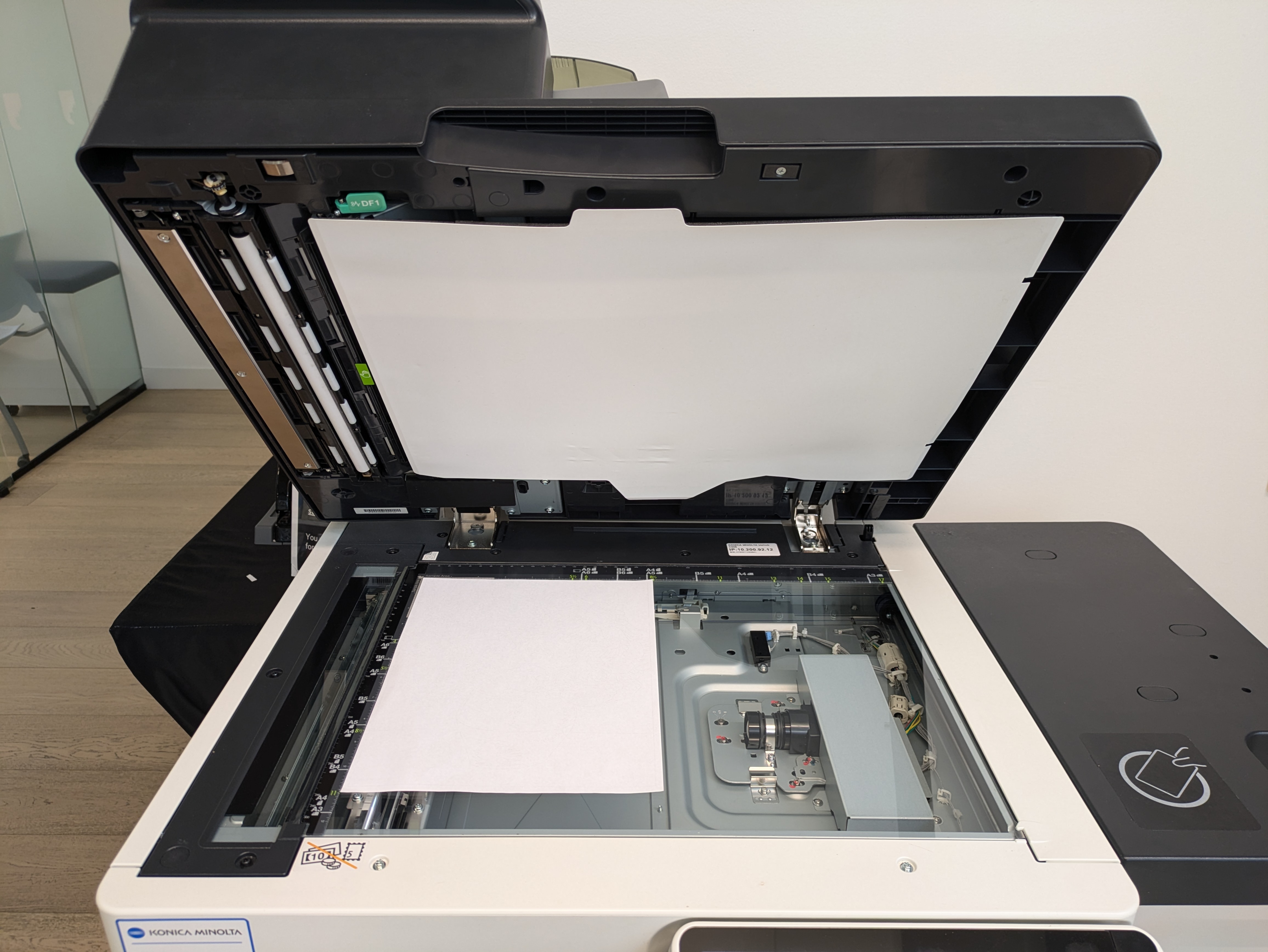
Lift the scanner lid and place your document in the top left corner of scanner glass with the side you want to scan facing down.

Close the scanner lid and press Start. Repeat these steps for additional document sides or pages if needed.

Remember to take your original copy off of the scanner.

Wrapping Up

Scanned items will be sent to your Microsoft 365 Outlook email (@myucw.ca) account displayed on screen. It may take upwards of 5 minutes to receive an email.

When you've finished printing, log out of printer by pressing the arrow icon in the top right corner.

To Photocopy Standard Letter Size Documents (8.5 x 11in)

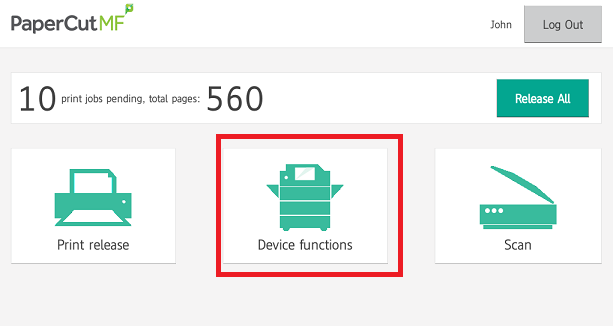
Once logged into the printer with your UCW ID number, press Device Functions.

Press Access Device and select Copy.

Place the document(s) in the loading tray at the top of the machine. Paper must be in portrait orientation in the loading tray.

Adjust settings as necessary to accommodate 2-sided documents, change output file type, etc., then press Start.

Note: Improperly loading the tray can result in damage to documents. Be cautious using this method for important documents.


To Photocopy Irregular Size Documents or IDs

Once logged into the printer with your UCW ID number, press Device Functions.

Adjust settings to accommodate additional pages, change output file type, etc., as necessary.

Lift the scanner lid and place your document in the top left corner of scanner glass with the side you want to scan facing down.

Close the scanner lid and press Start. Repeat these steps for additional document sides or pages if needed.

Remember to take your original copy off the scanner.


How to Connect Your UCW ID Card to Your Printing Account

You physical UCW ID card can be used to log in to printers instantly by tap.

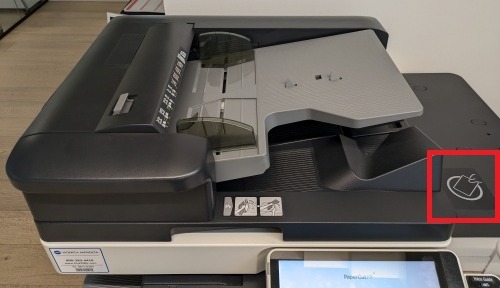
To enable this feature, first hold your UCW ID card on the card reader located on the right side of the printer.

Press Yes when prompted to associate your ID card with your printing account.

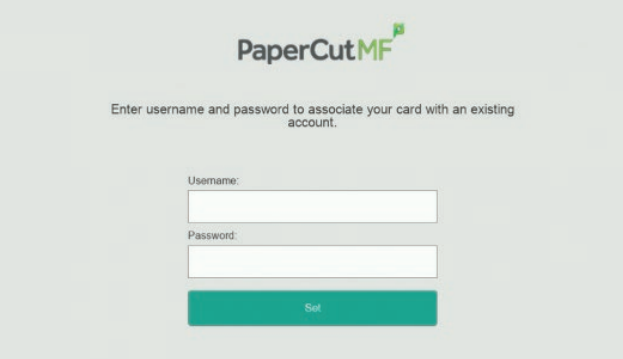
Enter your Microsoft 365 email credentials as your username and password, then press Set.
 

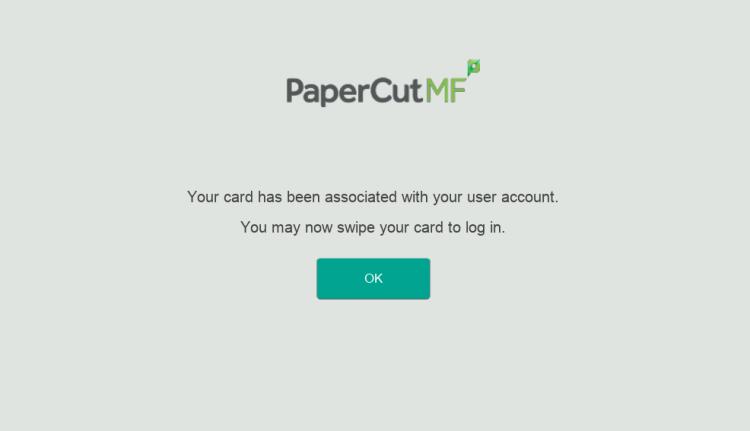
A confirmation screen will appear. Press OK.

Your UCW ID Card is now associated with your printing account.

Simply tap your UCW ID card on the card reader to instantly log in to any printer on campus. You do not need to associate your ID card with each individual printer.


If you experience issues connecting your ID card with the print system, please contact technical support by submitting an Helpdesk ticket through the IT Resources section of the myUCW Portal or via email at [email protected]


Intersession Notice

The library will be operating a reduced hours schedule from March 30 - April 10 for Intersession week. Check the events calendar and hours of operations for more details.